
1. Registration and account
1. Registration and account
1.1 Creating the account
Open the registration page (Sign up) and fill in the form.
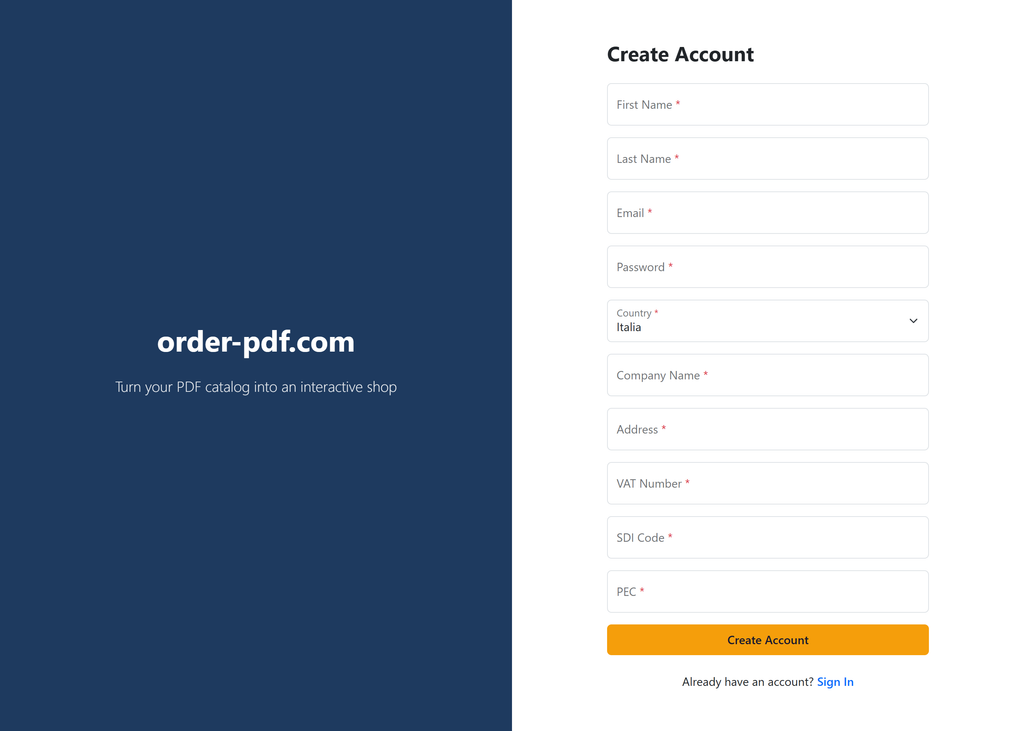
Selecting Italy as the country automatically shows the additional fields (Company Name, Address, VAT Number, SDI Code, PEC).
Example with the fields filled in:
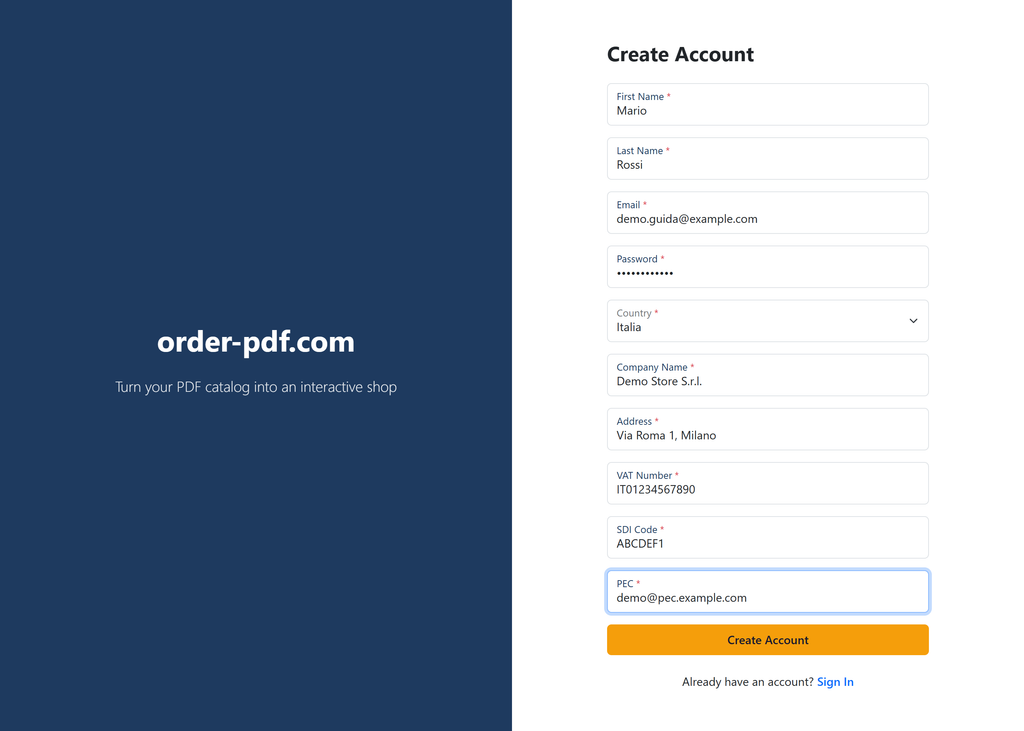
Always-required fields
| Field | Description |
|---|---|
| First Name | Your first name. |
| Last Name | Your last name. |
| Your email address: it is also your username for signing in. | |
| Password | Your sign-in password. |
| Country | The country of your company. Italy is at the top of the list. |
Fields that depend on the country
Some fields appear only after you have chosen the country:
| Field | When it is required |
|---|---|
| Company Name | Always, for any selected country. |
| Address | Always, for any selected country. |
| VAT Number | Required for Italy and for European Union countries. |
| SDI Code | Shown for Italy only. |
| PEC | Shown for Italy only. |
Rule for Italy: you must fill in at least one of SDI Code and PEC (they are needed for electronic invoicing). If you leave both empty, the registration is rejected with the message “For Italy, either SDI Code or PEC is required”.
Anti-bot check
In production, before completing the registration you may need to pass a Cloudflare Turnstile security check (“Security check”). It is an automatic anti-bot checkbox: you do not have to solve any code. (In the local development environment the check is disabled.)
1.2 What happens after you submit
- The system verifies the security check (if enabled).
- It creates your account and saves your company data (country, company name, VAT number, address, SDI/PEC).
- It signs you in automatically: you do not need to log in again right after registering.
- It takes you to the home page of the panel.
- At the same time your 14-day trial period is created.
Note: sign-in is not blocked while waiting for email confirmation — you enter the panel immediately after registering. Email confirmation still exists as a flow (see below).
1.3 Email confirmation
If you receive a confirmation email with a link, click it to confirm your address. The possible outcomes are:
- ✅ “Your email has been confirmed successfully.” — email confirmed.
- ⚠️ “The email confirmation link is invalid or expired.” — the link is invalid or expired: request a new confirmation link.
1.4 Sign-in and two-factor verification (2FA)
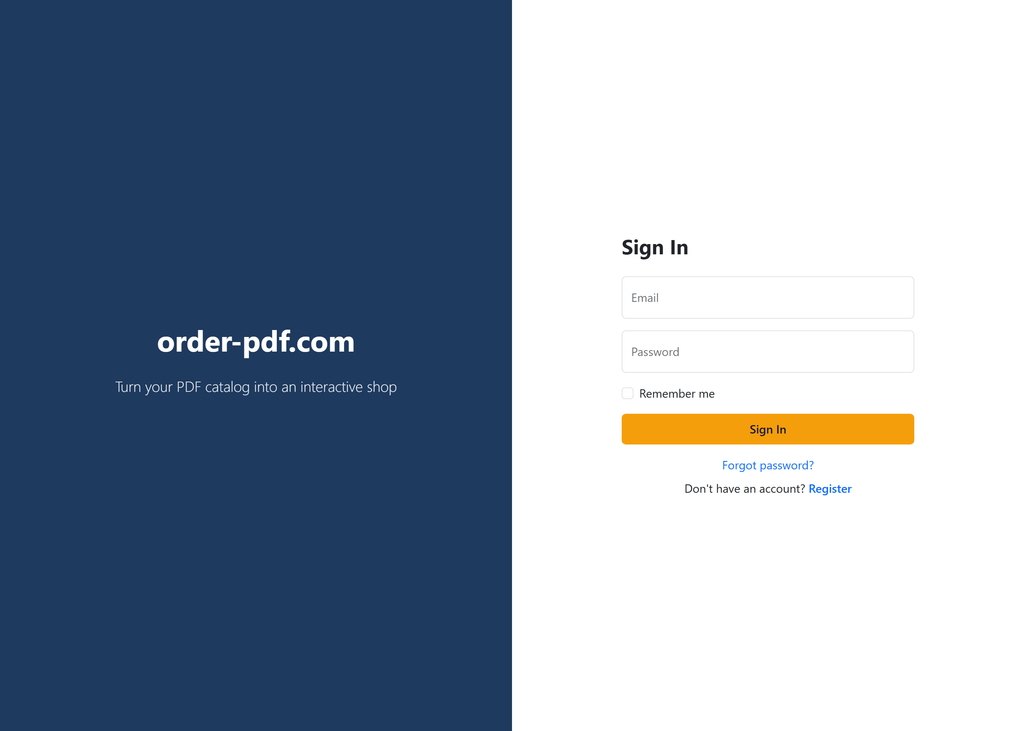
At login (not at registration) a second factor may be requested by email:
- Enter your email and password on the Login page.
- If email 2FA is active, you receive a message with the subject “Your PdfOrder verification code” containing a code.
- Enter the code on the VerifyCode page (Code field) and confirm.
Typical error messages:
- “Please enter the verification code.” — you did not enter the code.
- “Invalid verification code.” — wrong code.
- “User account is locked out.” — too many attempts: the account is temporarily locked.
After signing in, standard users are taken to the PDF Catalogs section, where the day-to-day work starts