
4. Enter the API Key in the platforms
4. Enter the API Key in the platforms
Each store connects to leaforder.com through the official plugin for its platform. In every plugin you must set three things:
- Middleware Base URL — the address of leaforder.com (e.g.
https://app.leaforder.com). - API Key — the key that authenticates data exchange between the store and leaforder.com. The same value must be entered both in the plugin and in the connection in ABP.
- Webhook Secret — a shared secret that signs the product-change webhooks (HMAC-SHA256). It must match on both sides.
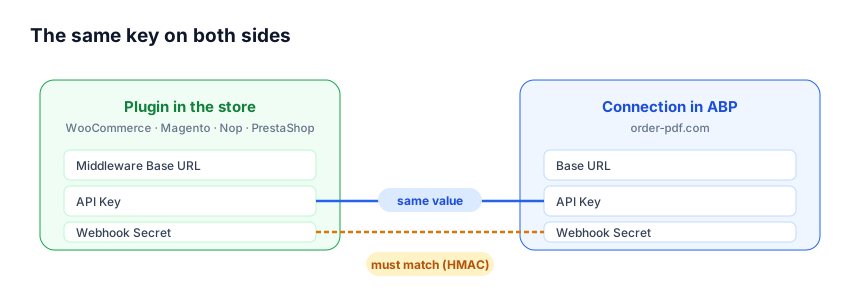
General rule: the API Key and Webhook Secret must be identical in the store plugin and in the ABP connection. Only where you generate the key changes, depending on the platform (see below).
4.1 WooCommerce
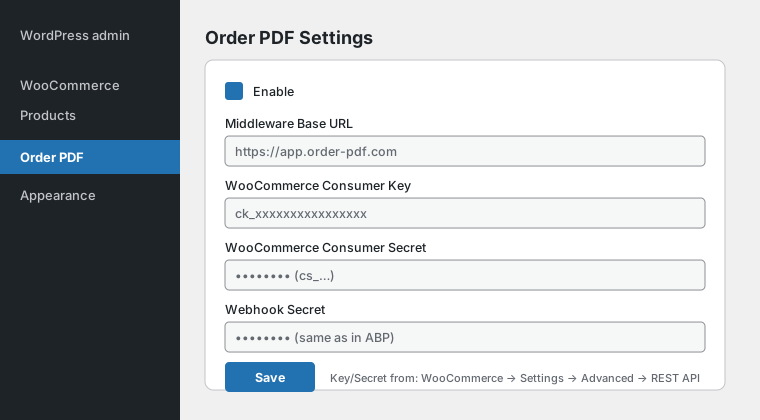
Where: WordPress menu Order PDF → Order PDF Settings.
- Install and activate WooCommerce (6.0+) and the order-pdf-for-woocommerce plugin.
- In WooCommerce, generate the API credentials: WooCommerce → Settings → Advanced → REST API and create a new key with the minimum required permissions, i.e. Read only. You get a Consumer Key and a Consumer Secret.
- Open Order PDF → Order PDF Settings and fill in:
- Middleware Base URL →
https://app.leaforder.com - WooCommerce Consumer Key
- WooCommerce Consumer Secret
- Webhook Secret (the same value set in ABP)
- tick Enable
- Middleware Base URL →
- Save: the plugin automatically registers the webhooks towards leaforder.com.
Mapping in ABP: in the ABP connection, the Consumer Key goes in the API Username field and the Consumer Secret in the API Key field.
4.2 Magento 2
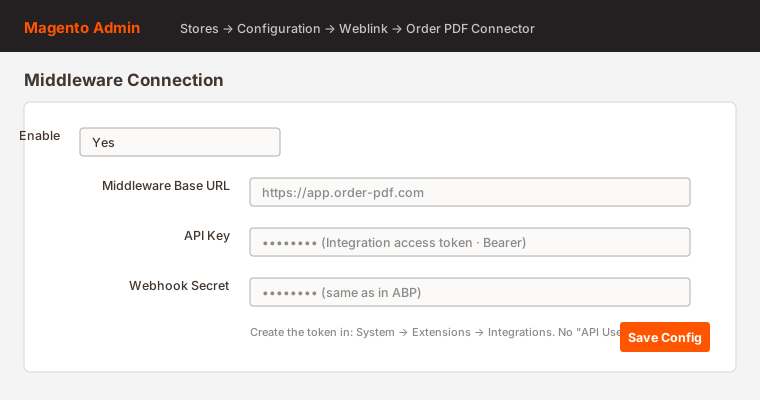
Where: Stores → Configuration → Weblink → Order PDF Connector → Middleware Connection.
- Install and enable the Weblink_OrderPdfConnector module.
- In Magento create an Integration access token: System → Extensions → Integrations. This token (the Consumer Key) is your API Key.
- Go to Stores → Configuration → Weblink → Order PDF Connector and fill in:
- Enable → Yes
- Middleware Base URL →
https://app.leaforder.com - API Key → the token of the Integration you just created
- Webhook Secret → the same value set in ABP
- Save the configuration.
- Go to Stores → Configuration → Services → OAuth and make sure the option Allow OAuth Access Tokens to be used as standalone Bearer tokens is set to Yes.
Note: the Magento API Key is a single token (used as a Bearer token): no “API Username” is needed. So in the ABP connection the API Username field stays hidden.
4.3 NopCommerce
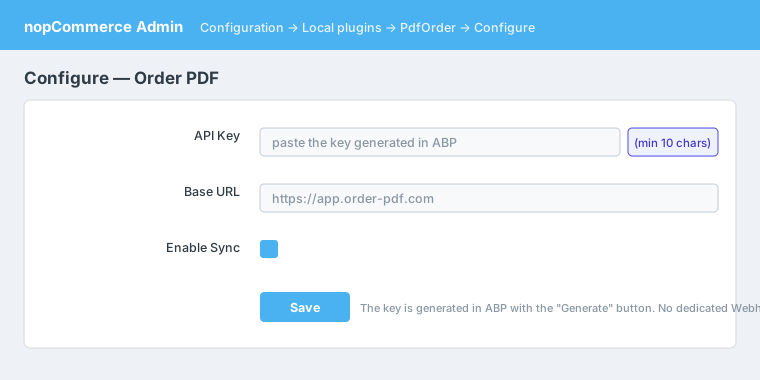
Where: nopCommerce admin panel → PdfOrder plugin → Configure.
- Install the Nop.Plugin.Misc.PdfOrder plugin and open the Configure page.
- With NopCommerce the key is generated in ABP: in the ABP connection (NopCommerce type) press Generate to create the API Key, then copy it.
- On the plugin’s Configure page fill in:
- API Key → paste the key generated in ABP (minimum 10 characters)
- Base URL →
https://app.leaforder.com - tick Enable Sync
- Save.
Security: the NopCommerce plugin does not store the key in plain text: it keeps only an encrypted version (hash) and the last 4 characters. Unlike the other platforms, the NopCommerce configuration has no dedicated Webhook Secret field.
4.4 PrestaShop
Where: Modules → Order PDF Connector → Configure.
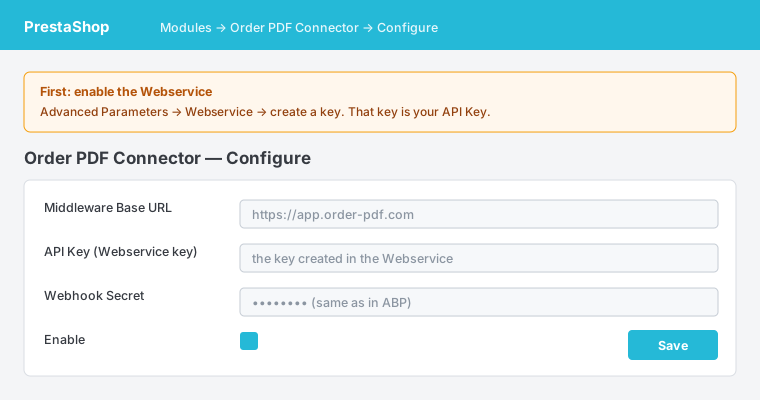
- Install the orderpdfconnector module.
- In PrestaShop enable the Webservice: Advanced Parameters → Webservice, turn it on and create a new key. This Webservice key is your API Key. Give it the minimum required permissions, i.e. read-only access to products.
- Go to Modules → Order PDF Connector → Configure and fill in:
- Middleware Base URL →
https://app.leaforder.com - API Key → the Webservice key
- Webhook Secret → the same value set in ABP
- Enable
- Middleware Base URL →
- Save.
Note: in PrestaShop, PDF catalogs are managed from the leaforder.com panel (there is no catalog list in the PrestaShop admin). The storefront widget covers the main product page.
4.5 Summary by platform
| Platform | Where to enter the key | What the “API Key” is | Where it is generated | Webhook Secret |
|---|---|---|---|---|
| WooCommerce | WP admin → Order PDF | REST Consumer Key + Consumer Secret | In WooCommerce (Settings → Advanced → REST API) | Yes |
| Magento | Stores → Configuration → Weblink → Order PDF Connector | Integration access token (Bearer) | In Magento (System → Extensions → Integrations) | Yes |
| NopCommerce | Admin → PdfOrder plugin → Configure | Opaque key (≥10 characters) | In ABP (Generate button) | — |
| PrestaShop | Modules → Order PDF Connector → Configure | Webservice key | In PrestaShop (Advanced Parameters → Webservice) | Yes |
←