
5. Create a PDF catalog
5. Create a PDF catalog
Once your store is connected and synced, you can upload a PDF catalog. leaforder.com analyzes it, finds the product codes in the text and turns them into clickable links.
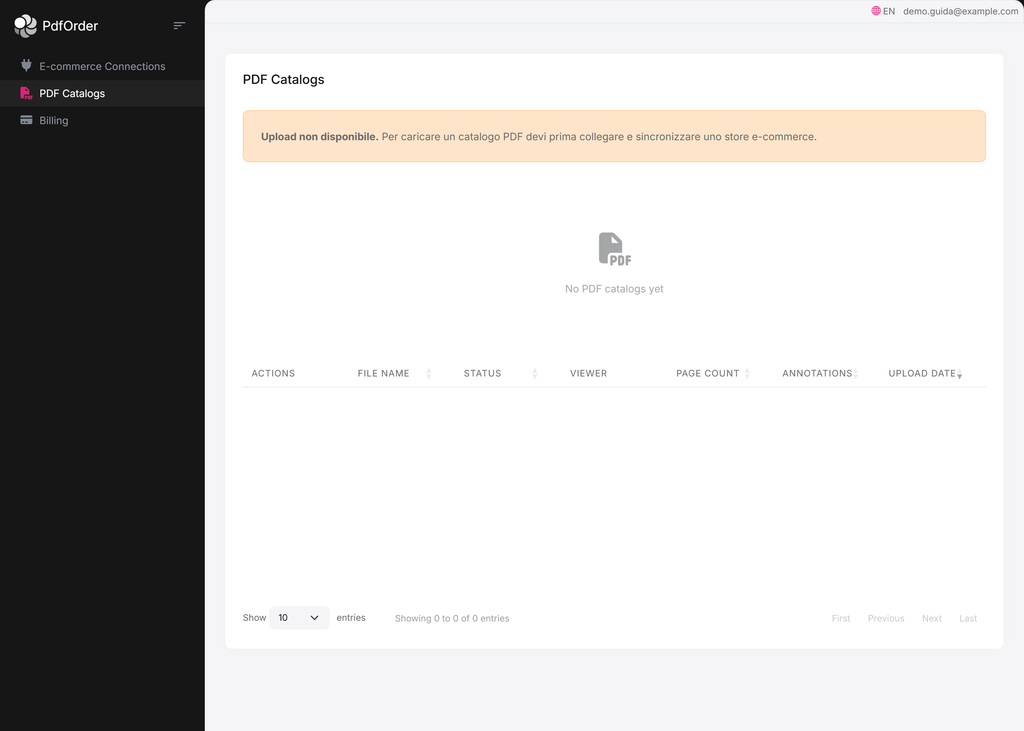
Prerequisite: the connection must have synced products and an active subscription/trial. If uploading is blocked you will see a message such as “To upload a PDF catalog you must first connect and sync an e-commerce store.”
5.1 Uploading the PDF
Go to PDF Catalogs. Until you have a connected and synced store, uploading is disabled and the catalog table is empty:
Once the products are synced, the upload form becomes active. The available fields are the following:
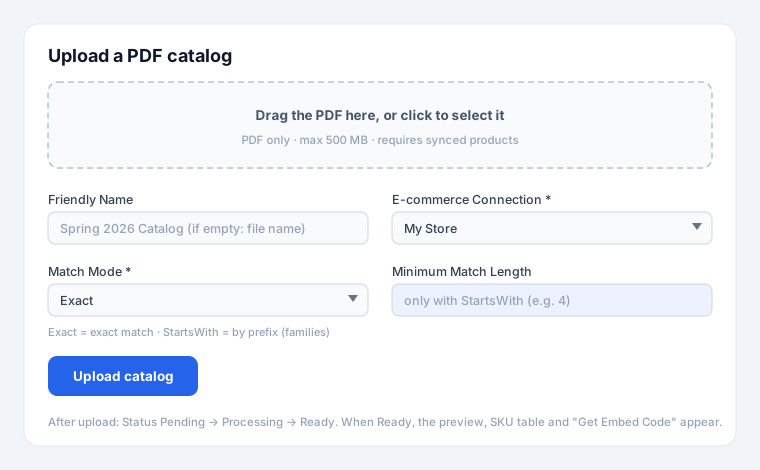
Fields at upload time
| Field | Required | Description |
|---|---|---|
| PDF File | ✔ | The file to upload. PDF format only, maximum size 500 MB. |
| Friendly Name | — | Display name of the catalog. If empty, the file name without .pdf is used. Max 512. |
| E-commerce Connection | ✔ | The store to associate the catalog with. Only connections with synced products and an active subscription are listed. |
| Match Mode | ✔ | How codes are compared (see below). |
| Minimum Match Length | depends | Minimum prefix length: required only with StartsWith. |
Match Mode: how codes are recognized
| Mode | Meaning | When to use it |
|---|---|---|
| Exact | The code in the PDF must match the product SKU exactly. | Catalogs with complete, unique codes. |
| StartsWith | It is enough for the text to start with the SKU (prefix match): useful for grouping the variants of a product (a “family”) under a single link. | Catalogs where several variants share a code prefix. |
With StartsWith you must set the Minimum Match Length (minimum prefix length, greater than 0) to avoid matches that are too generic. With Exact this field is not used.
5.2 Information shown for an existing catalog
When you open an already uploaded catalog, you see an information panel:
| Field | Meaning |
|---|---|
| File Name | The display name of the catalog (editable). |
| Status | The processing status (see table below). |
| Page Count | Number of pages processed. |
| View Token | The public code used in the viewer URL (/view/{token}). |
| Uploaded | Date and time of the upload. |
| Message | Any status message (warnings or errors). |
| Synced Products | Number of products synced on the connection. |
| Annotations | Number of links (SKU annotations) created in the catalog. |
Catalog statuses (Status)
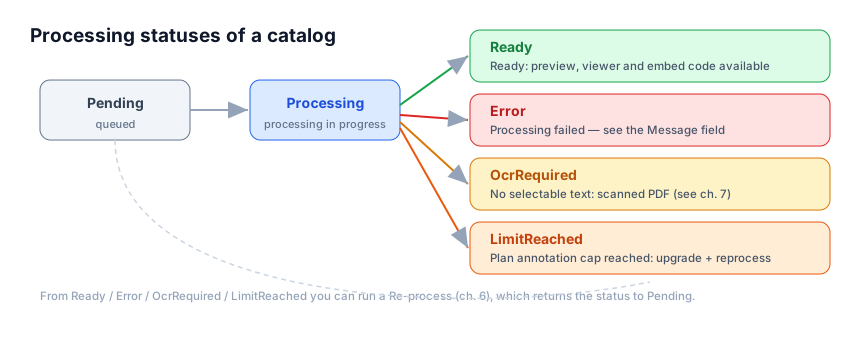
| Status | What it means for you |
|---|---|
| Pending | Uploaded and queued: processing has not started yet. |
| Processing | Processing in progress. The preview will be available when it finishes. The panel refreshes the status automatically every few seconds. |
| Ready | Ready: the annotated catalog is available, with preview, viewer and embed code (Get Embed Code). |
| Error | Processing failed. Check the Message field for details and try a reprocessing. |
| OcrRequired | The PDF has no selectable text (it is a scan): no code could become a link. See chapter 7. |
| LimitReached | The plan’s annotation cap was reached: the PDF was not fully annotated. Upgrade your plan, then run a reprocessing. |
5.3 Annotations table and preview
When the status is Ready, below the form you will find:
- A flipbook preview of the annotated PDF.
- The SKU Annotations table with, for each link found:
SKU,Pageand the coordinates of the box (X0,Y0,X1,Y1).
In the internal preview, clicking an annotation shows an informational popup: the preview is not connected directly to the store, whereas in the published catalog the popup shows real price and availability with the Add to cart button.
5.4 Publishing the catalog
When the catalog is Ready, use Get Embed Code to get the <abp-pdf-viewer …> snippet to paste into your site, or share the viewer link based on the View Token. Your customers will browse the catalog and can buy directly from the product popups.