3. Connect your e-commerce in ABP
3. Connect your e-commerce in ABP
Before uploading a catalog you must connect your store. The e-commerce connection tells leaforder.com where to find your product data (to recognize SKUs and show price/availability).
Order of the steps: first you create the connection in ABP, then you enter the same key in the store plugin (chapter 4), and finally you sync the products. Only after the sync can you upload a PDF catalog.
3.1 Creating the connection
In the menu go to E-commerce Connections and click New Connection. The creation form opens.
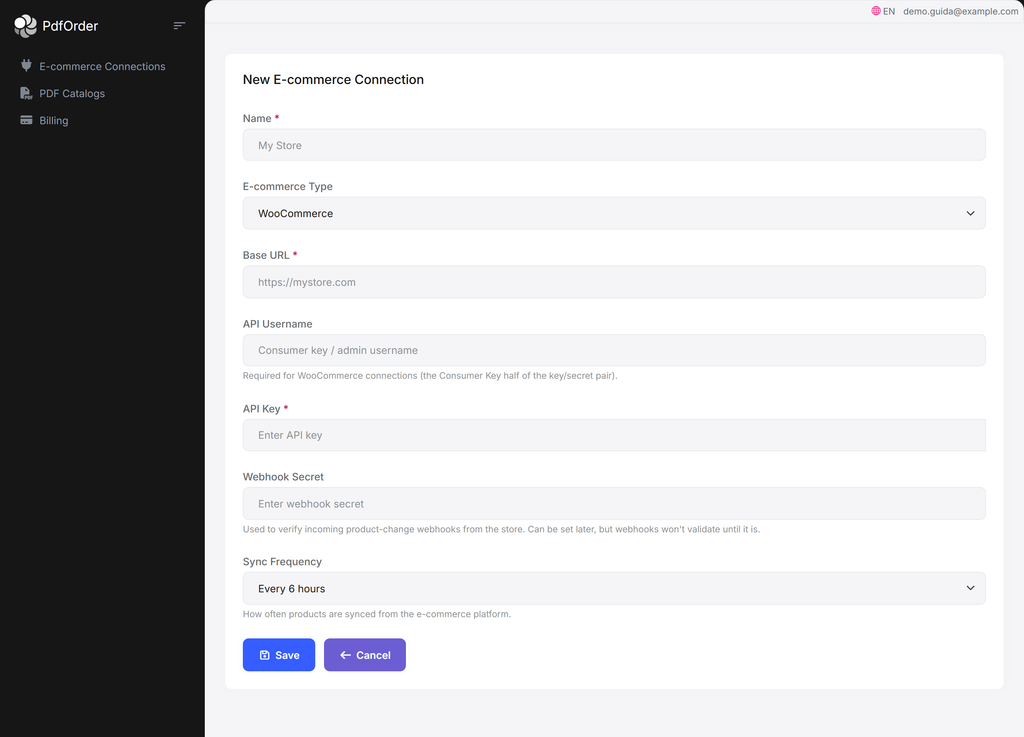
Example with the fields filled in (WooCommerce connection):
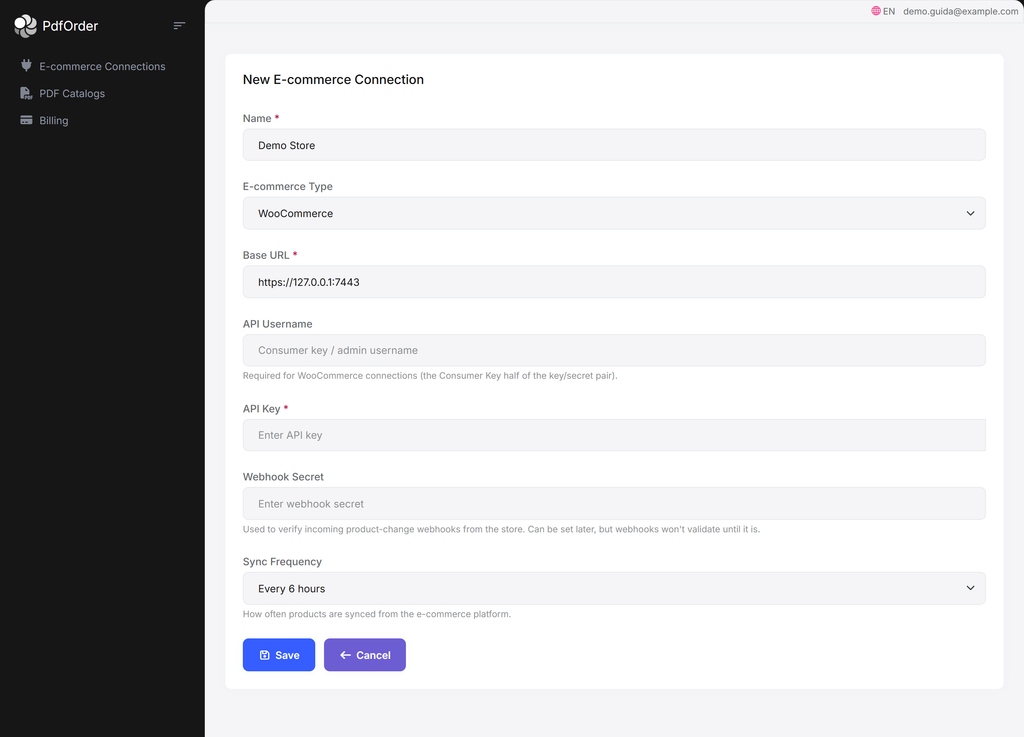
The connection list shows one row for each connected store, with the Actions menu (Edit, Delete, etc.):
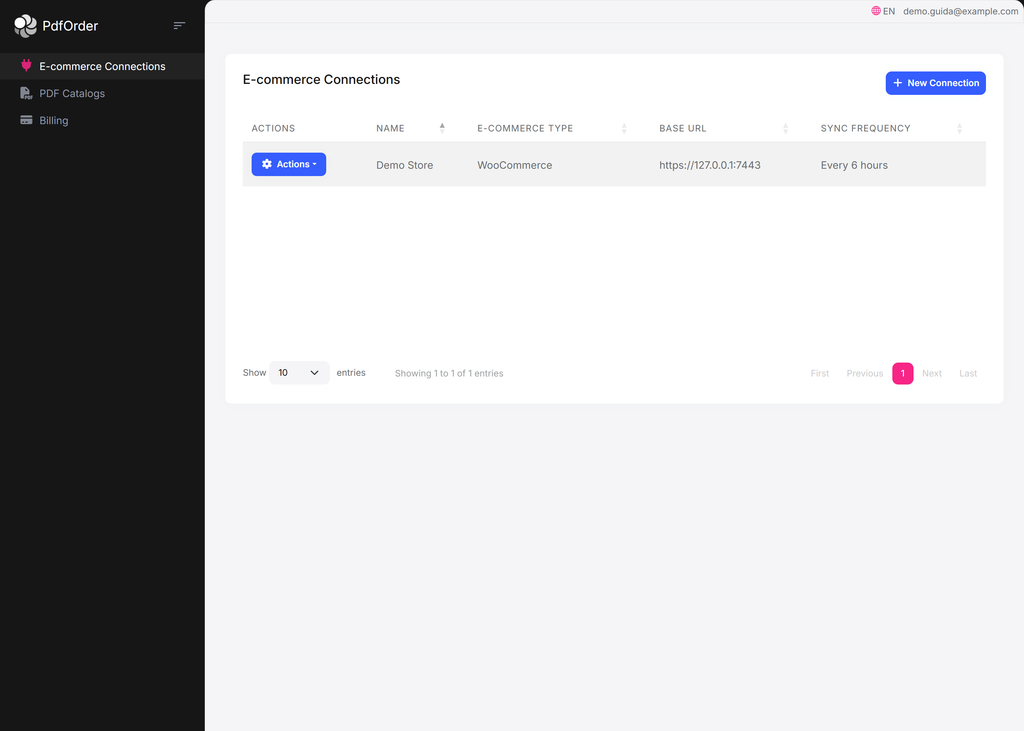
Form fields
| Field | Required | Description |
|---|---|---|
| Name | ✔ | Internal name of the connection (e.g. “My Store”). Max 256 characters. |
| E-commerce Type | ✔ | The platform: WooCommerce, NopCommerce, Magento, PrestaShop or Custom. |
| Base URL | ✔ | The address of your store. It must start with https:// (e.g. https://mystore.com). Max 512. |
| API Username | WooCommerce only | The WooCommerce Consumer Key goes here (half of the key/secret pair). It appears only if the type is WooCommerce; for other platforms it stays hidden. |
| API Key | ✔ (on creation) | The authentication key for your store. The value to enter depends on the platform and you obtain it by following chapter 4 (for WooCommerce it is the Consumer Secret; for Magento the Integration token; for PrestaShop the Webservice key). For NopCommerce, press Generate here and then paste the key into the plugin. |
| Webhook Secret | recommended | A secret that you choose (any strong string): enter it identically here and in the store plugin. It is used to verify incoming product-change webhooks (HMAC-SHA256 signature). NopCommerce has no Webhook Secret field. |
| Sync Frequency | ✔ | How often automatic synchronization runs (see below). |
Security: the API Key and the Webhook Secret are encrypted and, after saving, shown masked (only the last 4 characters). When editing, you can leave the fields empty to keep the existing values, or press Change to replace them.
Sync Frequency
| Option | Meaning |
|---|---|
| Webhook only (no scheduled sync) | No scheduled synchronization: updates arrive only through webhooks. |
| Every 6 hours | Every 6 hours (default for a new connection). |
| Daily (2:00 AM) | Once a day at 2:00. |
| Weekly (Monday 2:00 AM) | Once a week, on Monday at 2:00. |
3.2 Custom platform (advanced)
If you choose Custom, additional fields appear so you can connect a store that has no native plugin, by providing the API URLs of your own system (all optional, max 512 characters):
| Field | What it is for |
|---|---|
| Product sync URL | Paginated GET endpoint (?page=N&per_page=100, Bearer authentication) that returns the products. |
| Product-by-SKU URL | GET endpoint (?sku=<code>) used by the popup to read price/availability. |
| Product-by-GTIN URL | Same as above but for GTIN/EAN/UPC codes (only if your platform uses them). |
| Add-to-cart URL | POST endpoint ({ productId, quantity }) for adding to the cart. |
3.3 Testing and syncing
After saving the connection, the edit page shows the Save, Test Connection and Sync Now buttons and, further down, the grid of associated PDF catalogs:
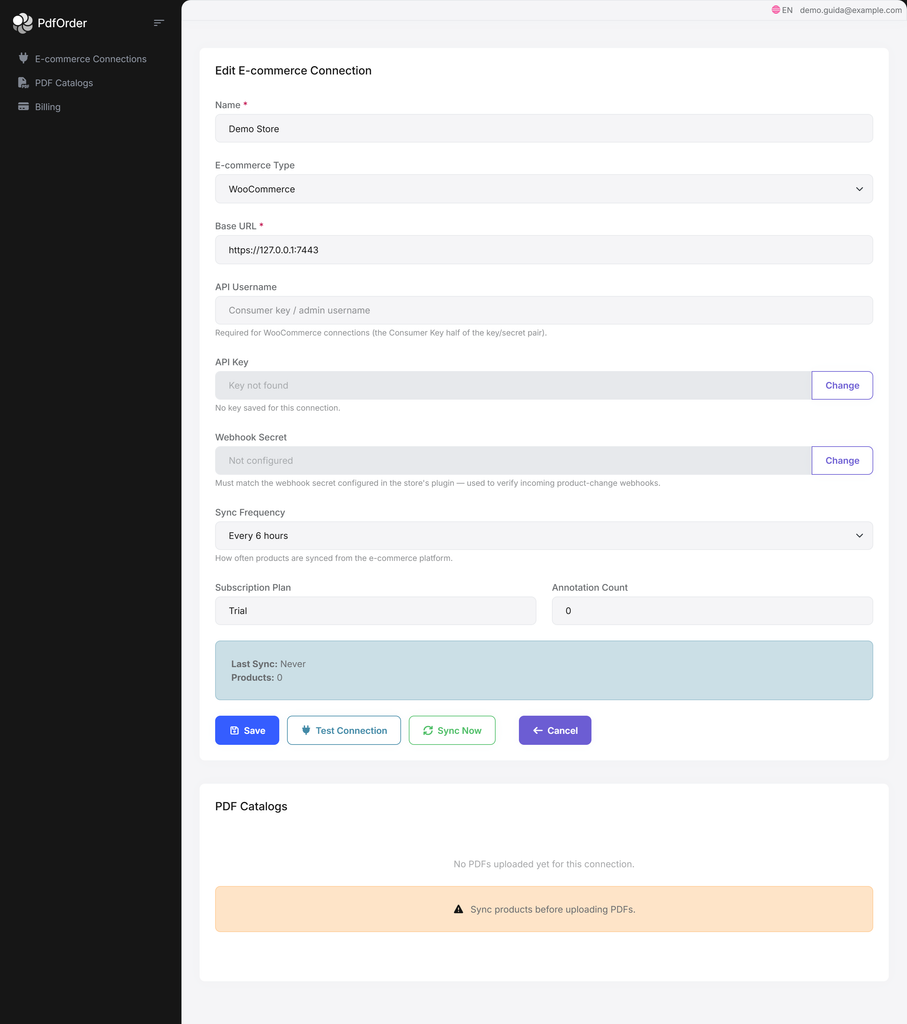
- Test Connection — checks that the credentials and URL are correct.
- Sync Now — immediately starts a product synchronization. When it finishes you will see a message such as “{n} products synced successfully.” and, if any SKUs changed, “PDF update queued for {n} catalogs.”
⚠️ You cannot upload a PDF catalog until the store has synced products. If you try, you will see the message “Sync products first.” So run at least one successful sync before moving on to chapter 5.