
User Guide LeafOrder
User Guide — leaforder.com
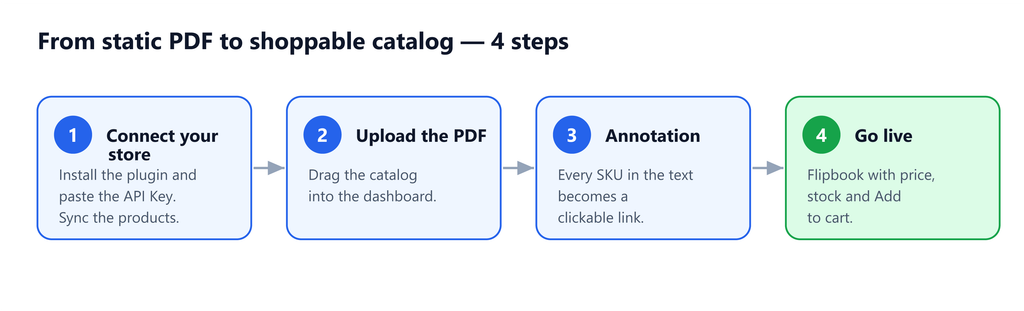
leaforder.com turns a static PDF catalog into a shoppable catalog: it recognizes every product code (SKU) found in the text of the pages and turns it into a clickable link that opens price, availability and an Add to cart button, kept in sync in real time with your store.
This guide explains, step by step, how to use the platform from sign-up to publishing your first catalog. It is written for the people who run the store (e-commerce administrators) and requires no development skills.
Contents
| # | Chapter | What you will learn |
|---|---|---|
| 1 | Registration and account | Creating an account, the required fields, email confirmation and login verification. |
| 2 | Trial, plans and payments | How the 14-day trial works, the plans, the thresholds and how to pay with Stripe. |
| 3 | Connect your e-commerce in ABP | Creating the store connection in the panel and syncing products. |
| 4 | Enter the API Key in the platforms | Where and how to enter the key in WooCommerce, Magento, NopCommerce and PrestaShop. |
| 5 | Create a PDF catalog | Uploading the PDF and the meaning of every edit field. |
| 6 | Reprocessing | When and how to reprocess a catalog. |
| 7 | Codes must be selectable text | Why the PDF must contain real text and not scanned images. |
Key concepts (quick glossary)
- ABP / panel: the members area of order-pdf.com where you manage your account, connections, catalogs and billing.
- E-commerce connection: the link between order-pdf.com and your store (WooCommerce, Magento, NopCommerce, PrestaShop or a Custom platform).
- PDF catalog: the PDF file you upload, automatically annotated with product links.
- SKU / product code: the code that identifies the item; it must appear as selectable text in the PDF to be turned into a link.
- Annotation: the clickable link (with highlighting) overlaid on the code found on the page.
- Reprocessing: re-running the PDF processing, which rebuilds the annotations based on the updated product data.
leaforder.com finds codes by reading the text of the PDF. If the document is a scan (an image of a page), it contains no extractable text and no code can be turned into a link. Make sure the product codes are selectable in the PDF (you can check by trying to select them with the mouse in a PDF reader). See chapter 7. Codes must be selectable text.