
6. Reprocessing
6. Reprocessing
Reprocessing rebuilds a catalog’s annotations from scratch, comparing the codes in the PDF with the store’s updated product data. The original PDF file does not change: only the annotated version is regenerated.
6.1 When to use it
Run a reprocessing when:
- You have changed the product data (added, renamed or removed SKUs) and want to align the catalog links.
- The catalog is in Error status and you want to retry processing.
- The catalog is in OcrRequired and you have replaced the PDF with a version that contains selectable text (see chapter 7).
- The catalog is in LimitReached and you have upgraded your plan: after the upgrade, reprocess to annotate the codes that were left out.
Note: many product changes are already handled automatically through webhooks (orphaned annotations are removed and new ones added). Manual reprocessing is for a full realignment or after resolving a blocking issue.
6.2 How to start it
The Re-process button is available:
- on the catalog edit page (PDF Catalogs → Edit);
- in the catalog list, from the row’s Actions menu;
- on the e-commerce connection page, in the catalog grid.
It is shown only for catalogs that have already been processed (never while processing is in progress). Note where it appears depending on the status:
- on the catalog edit page it appears for Ready, Error, OcrRequired and LimitReached;
- in the catalog list and in the connection grid it appears for Ready, Error and OcrRequired. For a catalog in LimitReached, use the catalog edit page.
When you confirm (“Re-process this catalog? This will re-annotate the PDF with current product data.”) the operation starts.
6.3 What happens during reprocessing
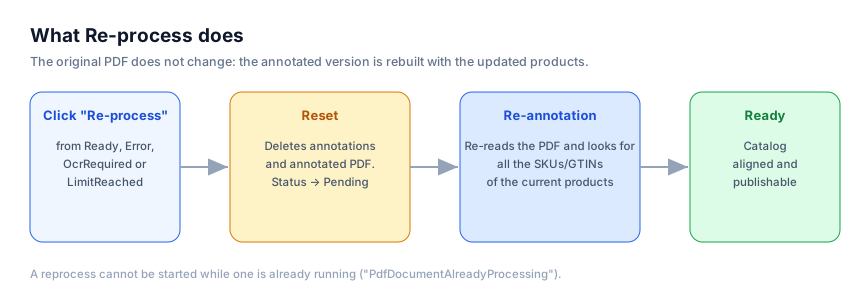
- All existing SKU annotations of the catalog are deleted.
- The previous annotated version of the PDF is deleted.
- The status returns to Pending, then moves to Processing.
- The system re-reads the original PDF and searches for all SKUs/GTINs of the currently synced products, recreating the links (with their highlighter) on the pages where the code appears as text.
- When finished, the status returns to Ready (or reports OcrRequired / LimitReached / Error where applicable).
You cannot start a new reprocessing while one is already running: the message “PdfDocumentAlreadyProcessing” will appear. Wait for it to complete.
6.4 How codes are matched to pages
leaforder.com extracts the text of each page and looks for product codes:
- Exact — the annotation remains valid as long as a product with that exact SKU exists.
- StartsWith — the annotation (a “family”) remains valid as long as at least one product whose code starts with that prefix exists.
When the last matching product is removed from the store, the annotation becomes “orphaned” and is removed automatically, regenerating the annotated PDF without that link. The validity condition is the existence of the product, not stock availability (stock is handled at the time of the popup / add to cart).