
7. Codes must be selectable text in the PDF
7. Codes must be selectable text in the PDF
This is the most important requirement for a working catalog: product codes (SKUs) must appear as real, selectable text inside the PDF, not as part of an image.
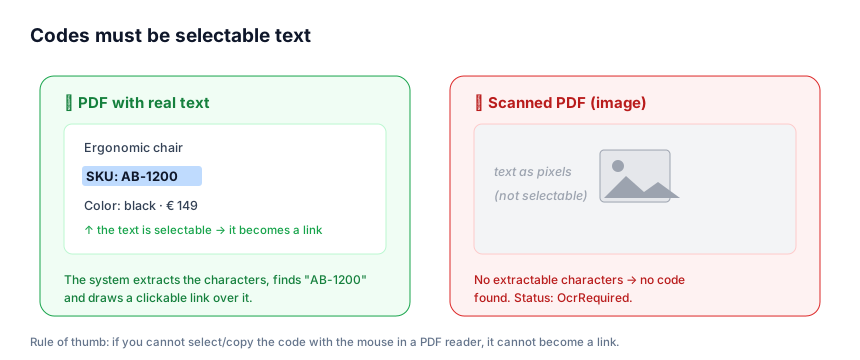
7.1 Why
leaforder.com creates links by reading the text of the pages. The process is:
- It extracts the characters present on the page (with their position).
- It searches for each SKU/GTIN within that text.
- It draws a clickable link (with a highlighter) exactly over the code it found.
If a page is a scan — that is, an image that depicts text — it contains no extractable characters. As a result no code can be detected and no link can be created.
Analogy: the system “reads” the PDF as a reader that copies and pastes text would. If you cannot select a code with the mouse in a PDF reader, leaforder.com cannot either.
7.2 How an invalid page is recognized
The system considers a page “image only” (scanned) when:
- it contains no extractable text, and
- it contains an image that covers at least 95% of the page area.
Pages of this kind are skipped and recorded as pages that need OCR.
- If no code could be annotated in the whole document and at least one page is scanned, the catalog takes the OcrRequired status.
- If some annotations were created but some pages are scanned, the catalog stays Ready with a warning such as “Warning: Pages … are scanned and could not be annotated.”
7.3 What to do if “OcrRequired” appears
The OcrRequired status means: the uploaded PDF is effectively a scan with no selectable text, so no code could be linked.
To fix it:
- Get a PDF with real text. If the catalog comes from layout software (InDesign, Word, etc.), export the PDF with the text, not as an image.
- Or apply OCR to the scanned PDF (with a tool that adds a selectable text layer) and check that you can select the codes.
- Re-upload or replace the file and run a reprocessing.
7.4 How to check before uploading
Open the PDF in a reader (e.g. Adobe Acrobat, Preview, the browser) and try to:
- Select a product code with the mouse (it should highlight as text).
- Copy and paste it into an editor: if you get the code as text, it is selectable ✅. If you cannot select it, it is an image ❌.
A “mixed” PDF (some pages text, others scanned) will be annotated only on the pages with text: the others will have no links and will be flagged in the warning.
7.5 A note on GTIN/EAN
Besides SKUs, leaforder.com can also recognize GTIN/EAN/UPC codes if they are present in the product data. The same rules apply: they must appear as selectable text in the PDF to become links.